

[Updated 22 Feb 2020] When my family and I were cleaning up my grandmother’s estate, we were stumped on what to do with her big collection of photos. My uncles were doing all the heavy lifting, probate-wise, and I volunteered to scan all the photos, negatives, and slides, because I had a flatbed scanner that could do all three formats. I had no idea what I was in for. That was 6 years ago. I have learned MOUNTAINS of what to do and what not to do. Here’s a blog post I wrote about the first project.
I thought I’d share my setup with you, and how I got to where I am today.


The setup today
I have a scanning station:
- PC: A refurbished Lenovo ThinkCentre M Series running Windows 7, running Adobe Lightroom (desktop version)
- 2 backup drives: a Lacie and a Seagate, each with 2 terabytes (TB)
- Scanner #1: An Epson FastFoto FF-640 automatic feed photo & document scanner, which will scan 75-1200 dpi. See my review here.
- Scanner #2: A Canon 8400F flatbed scanner (bought 10 years ago) which will scan 50-1600 dpi and has trays to scan i) 35mm x 12 frames (negatives); ii) 35mm x 4 frames (mounted slides); and iii) Film Strip (120 roll film)
- A journal, where I keep a running log of what I’ve done (see below)
- Several USB drives, to transfer the scans to my laptop when I need them
- VueScan Pro


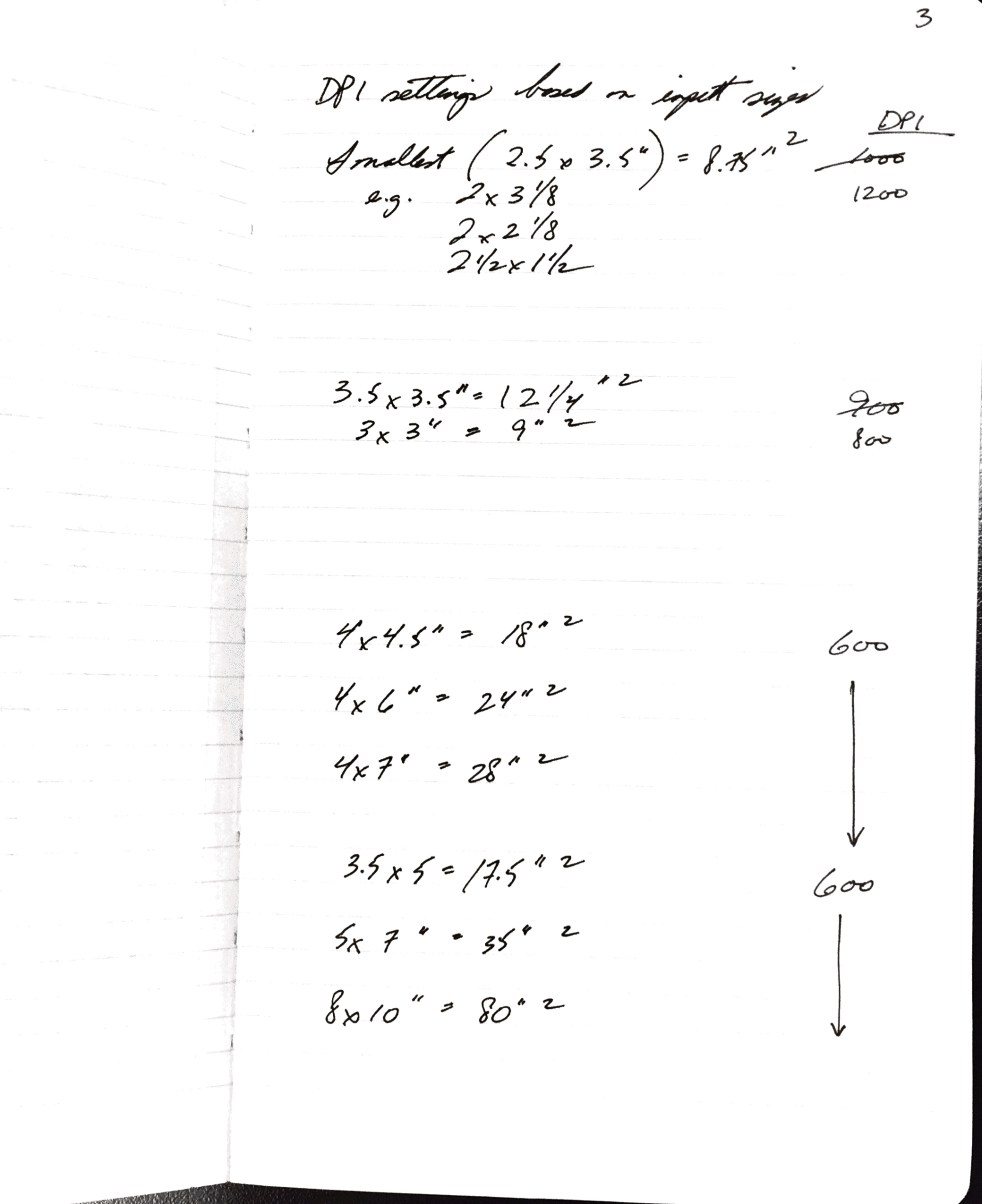
My journal: dpi settings, naming conventions and progress
The key in a project like this is consistency. I can’t remember things I did last week, never mind dpi settings, so I wrote them all down for reference:
- Scanning rules for naming conventions, dpi settings and anything I want to ensure is the same for all scans
- Date and time spent
- Beginning and ending Photo ID #’s
- Notes and questions on what I’ve scanned (some of which I capture for genealogy research), i.e., Engagement party photos, circa 1940s, who are these people, where was this taken, who is getting married?



My unorthodox solution
What if you could “freeze” your operating systems? What if you could set up your scanners, get them calibrated and working perfectly, and then leave it alone? What if you kept the computer off the internet for the most part, and never used it to surf? That’s what I’ve done.
I’d been looking around for a copy of Windows 7. At the time, Canon USA wasn’t offering device drivers for anything beyond Windows 8, and I liked Windows 7 anyhow. I visited a computer depot which sold old office equipment, walked in thinking I could buy a copy of Windows 7 for ~$150, and walked out with a refurbished PC with Windows 7 already loaded for $300. It was like getting another computer for $150.
[Update 22 Feb 2020] I still have this setup but am considering buying another refurbished PC. Win7 has been a great workhorse but Lightroom is getting slow and clunky with the ~40K images I’ve collected.
The results
For those who like results by the numbers: the grand total is 35,062 images as of today:
- Chu family scanning project: 2.32 GB; 7884 images
- Yip family scanning project*: 20 GB; 789 images
- Personal photo archive aside from the above: 68.6 GB; 26,262 images
*The Yip scanning project is when I switched from .jpg to .tif files.
Why this works for me
Running two scanners is efficient. I prefer the ease of the Epson, which not only scans ultrafast, even at high dpi settings, but also has an automatic counting setting. Each scan gets its own unique ID number.
However, not everything can or should be scanned through the automatic feed. For all of these, I use the flatbed:
- Fragile documents
- books
- prints that are too tiny or too thick
- Negatives
- Slides
The downside
There are a few downsides to this setup, the largest of which is inconvenience. If I want to use any of my scans, I have to go to my office, find the ones I want, export them to a USB drive, and transfer the scans to my laptop.
The second consideration is space. This won’t work on your dining room table (which is where I first set up, to the chagrin of my husband, who strangely didn’t want to eat meals with the continual hum of the scanner running).
Why I settled on this setup
Constant operating system upgrades and changes that mess up my systems were driving me bonkers.
I’ve moved through several iterations of laptops and operating systems. The Canon and its packaged software have not kept up with the times. With each move, I’d have to locate and install device drivers. (I’d rather file my taxes than find and install a device driver.)
HINT: If you own an old Canon and need device drivers, you must go to the Canon USA site. You cannot find them on the Canon Canada site. (Don’t ask me how long it took for me to learn this, but it was counted in years, not days.)
Why not buy a new flatbed scanner?
If you can easily do that, go for it. Me, I’m against tossing out something that works well just because it’s an older model. If I win the lottery tomorrow, though, I’m going to buy the Epson v850. What a beauty, and what a price tag: CAD$1349.
Other solutions: VueScan
VueScan is a company that makes device drivers for scanners. Yup. There is a business out there to fill in the void left by scanner manufacturers who clearly have trouble keeping up with OS upgrades. I did run a few tests on VueScan but opted to go with my setup as shown here. It’s good to know there’s an alternative. [Update 22 FEb 2020: I bought and installed VSP in 2019. It runs both the Epson and Canoscan scanners very well.]
Outstanding questions I still have
What on earth should I do with all of the photos now? I do not have unlimited storage or funding for museum-quality materials for 35K pieces.
Postscript
The idea for this post came from a Facebook discussion in the group Technology for Genealogy. Scanning and organizing are two big loves of mine – the natural outcome of a former commercial graphics professional and an executive legal assistant – and I thought it made a good topic for an expanded discussion. I hope it’s been helpful.
Next week: Tips for anyone starting a photo scanning project